

DiskGenius is a widely acclaimed partition management and data recovery tool for Windows users. With its extensive capabilities—including partition resizing, data backup, disk cloning, and file recovery—it’s become the go-to utility for IT professionals and general users alike. But knowing where to install DiskGenius can make a significant difference in its performance, accessibility, and safety.
TL;DR (Too Long; Didn’t Read)
DiskGenius should ideally be installed on a different drive than the one you plan to recover or work on, especially during data recovery. For general usage, installing it on your system (C:) drive is acceptable. Consider using the portable version of DiskGenius for emergency tasks, as it doesn’t require installation and reduces the risk of overwriting lost data. Always follow safe practices and keep backups before running recovery operations.
Where Should DiskGenius Be Installed?
The location where DiskGenius is installed can influence how effective and safe the application will be during critical operations. Let’s explore the various scenarios and best practices when installing this software utility.
1. Installing on the System Drive (C: Drive)
Most Windows applications, including DiskGenius, are typically installed on the system drive—usually the C: drive. This makes the application readily accessible and ensures all application components integrate seamlessly with the operating system.
Advantages of installing on the system drive:
- Easy to locate and launch
- Complements system-level activities like partitioning and cloning
- Receives updates and patches without compatibility issues
However, this isn’t always ideal—especially for data recovery tasks:
- There’s a risk of overwriting lost data on the C: drive
- System drive may become overloaded with multiple tools and applications
Best Practice: For routine tasks like partition management and backup, installing DiskGenius on the system drive is perfectly acceptable. However, caution must be exercised during recovery operations.
2. Installing on a Secondary/Internal Drive
Many users prefer installing larger programs or specialized utilities like DiskGenius on a separate drive (e.g., D: or E:). This approach helps in isolating recovery tools from the operating system and ensures better safety.
Reasons to install on another internal drive:
- Reduces the chance of overwriting data during recovery
- Keeps system drive free from third-party software clutter
- Improves searchability for recovered files when the system drive crashes
Best Practice: Installing DiskGenius on a healthy, separate internal drive allows for safe recovery of data on the system drive without the risk of interference.
Image not found in postmeta3. Installing on an External Drive
Installation on an external hard drive (USB drive or SSD) is sometimes useful for professionals who perform data recovery or maintenance across different systems.
Advantages:
- Portability: Use DiskGenius across multiple PCs without setting it up again
- Minimizes system footprint—no need to install the tool in every machine
- Safe recovery environment—prevents any accidental overwriting of lost files
Limitations:
- Can be slower due to USB bandwidth limitations
- May face issues with permissions or administrative access on some machines
Best Practice: Useful during emergency recovery operations and should be used in conjunction with a portable version of DiskGenius for maximum compatibility.
4. Using the Portable Version
DiskGenius offers a portable version that does not require installation. This is one of the safest and most efficient methods to work with sensitive drives, especially when trying to recover lost data or working on a potentially compromised system.
Why the portable version is highly recommended for data recovery:
- Prevents any risk of overwriting lost data
- Allows quick deployment during emergencies
- Runs directly from a USB stick or external SSD
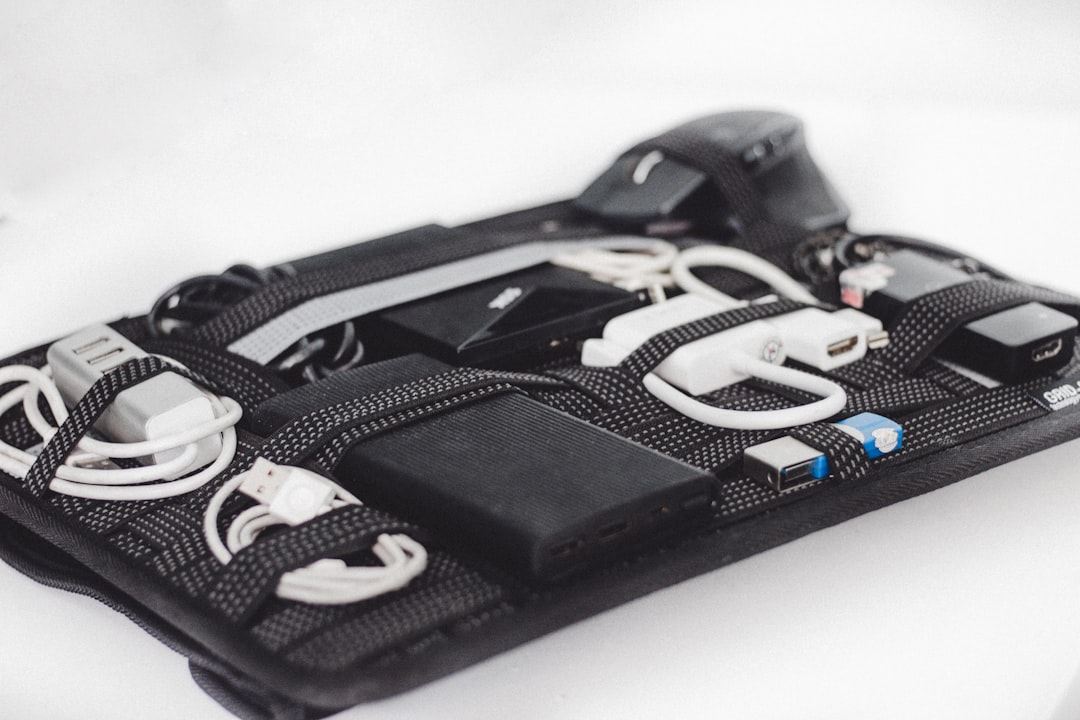
Best Practice: Always have a copy of the portable version available on a USB drive. It’s an essential tool for IT pros, especially when dealing with machines that cannot boot into Windows properly.
5. Situations to Avoid
Certain installation practices can lead to negative consequences, especially involving lost data. Here are a few situations that should be avoided at all costs:
- Installing DiskGenius on the same drive where data loss occurred
- Installing without administrative privileges, which can limit tool access
- Running the installer on a corrupted or failing drive
Best Practice: Before performing any disk repair or formatting action, make sure to boot from a live CD, recovery disk, or run the portable version from another drive.
Additional Tips for Best Installation Practices
Follow these expert tips when setting up DiskGenius:
- Create a dedicated recovery folder on your external or secondary drive to store all recovered files.
- Backup your system before performing any partition or data recovery operation.
- Keep DiskGenius updated to ensure compatibility with new file systems and partition types.
- Avoid using the recovery target drive for any other download, installation, or write operation until recovery is complete.
Conclusion
The safest and most efficient location for installing DiskGenius depends on the intended use. For simple partitioning or backup tasks, the system drive works well. But for sensitive operations like data recovery, installing DiskGenius on a different internal or external drive—or using the portable version—is crucial to prevent data loss and ensure operational convenience. Adopting these best practices not only keeps your data intact but also enhances the reliability of your disk management workflows.
FAQs
- Q: Can I install DiskGenius on the C: drive?
A: Yes, you can. However, avoid this when recovering data from the C: drive to prevent overwriting lost files. - Q: Is the portable version of DiskGenius as functional as the installed version?
A: For most use cases, yes. The portable version includes nearly all features and is more suitable for recovery tasks. - Q: Will DiskGenius work from an external USB drive?
A: Yes, it can. Installing or unzipping the portable version onto a USB drive allows you to run it on multiple PCs. - Q: What’s the safest option for data recovery?
A: Using the portable version from an external drive or a bootable recovery disk is the safest approach. - Q: Do I need administrator rights to run DiskGenius?
A: Yes, admin privileges are usually required to perform system-level disk operations. - Q: Can I move an existing DiskGenius installation to another drive?
A: It’s best to uninstall from the original location and reinstall. Alternatively, switch to the portable version for flexibility.
