

So, you’re about to install a new operating system or set up a hard drive, and someone throws some tech jargon at you: MBR or GPT? Your brain stalls. What do these random letters mean? Do they even matter? Spoiler alert: Yes, they do!
TL;DR — Quick Summary
MBR (Master Boot Record) and GPT (GUID Partition Table) are two ways to manage partitions on your drive. MBR is older and has limits — it maxes out at 2TB and only allows four primary partitions. GPT is newer, supports very large drives (think zettabytes!), and can handle more partitions. If you’re using modern hardware, GPT is definitely the way to go.
What is a Partition Table Anyway?
Let’s rewind. Every hard drive or SSD has a special area that keeps track of how data is stored. This part is called the partition table. It’s like a table of contents for your drive. Without it, your computer wouldn’t know where one file starts and another ends.
So, MBR and GPT are two types of partition tables — two styles of keeping your storage organized.
MBR: The Old-School Option
MBR stands for Master Boot Record. It’s been around since the early 1980s (yep, the floppy-disk era). Here’s what you need to know:
- Supports up to 2TB per partition
- Only 4 primary partitions allowed
- Only works with BIOS (older system firmware)
If you want more than four partitions, you’ll need to cheat a little by creating something called an extended partition, which can hold multiple logical partitions. It’s a workaround — not very elegant.
MBR also stores all key data in one spot at the beginning of the disk. That means if this section gets corrupted, you’re out of luck. The whole drive could become unreadable.
Image not found in postmetaGPT: The New Kid on the Block
GPT stands for GUID Partition Table. It’s part of the UEFI (Unified Extensible Firmware Interface) standard and it’s here to fix everything that MBR doesn’t do well.
- Supports drives larger than 2TB (way larger!)
- Allows up to 128 primary partitions on Windows
- Works with both BIOS and UEFI (but best with UEFI)
- Stores backup data for recovery
GPT stores important information in multiple places on the disk. So if something goes wrong, your computer can recover — very clever. It also uses a globally unique identifier (GUID) for every partition, making things super organized and less prone to conflict.
MBR vs GPT: The Face-Off
Let’s put them head to head and see how they stack up:
| Feature | MBR | GPT |
|---|---|---|
| Release Era | 1983 | 2001 (part of UEFI) |
| Max Partition Size | 2 TB | Up to 9.4 ZB (zettabytes!) |
| Partition Limit | 4 Primary (more with extended) | 128 Primary (no tricks needed) |
| Firmware Compatibility | BIOS only | UEFI (can work with BIOS via tricks) |
| Data Redundancy | No | Yes |
| Corruption Safety | Low | High |
Why Would Anyone Use MBR Today?
Great question. You’d mostly use MBR if:
- You’re working with really old hardware
- You’re installing older operating systems like Windows XP or early Linux versions
- You need to support some legacy BIOS systems
But let’s be clear — this is like choosing a VHS tape over streaming. Only do it if you absolutely have to.
Why GPT is the Future
Using GPT just makes life easier. Here’s why you’ll want it on your drives:
- Setting up a new PC? GPT is the go-to.
- More storage space? GPT handles it with ease.
- Planning for the future? GPT is more stable and recoverable.
Modern operating systems love GPT. Windows 10 and 11 require GPT if you want to use the slick UEFI features like Secure Boot.
Linux? Totally supports GPT. MacOS? Was GPT-only from the get-go.
How to Check What Your Drive Is Using
On Windows:
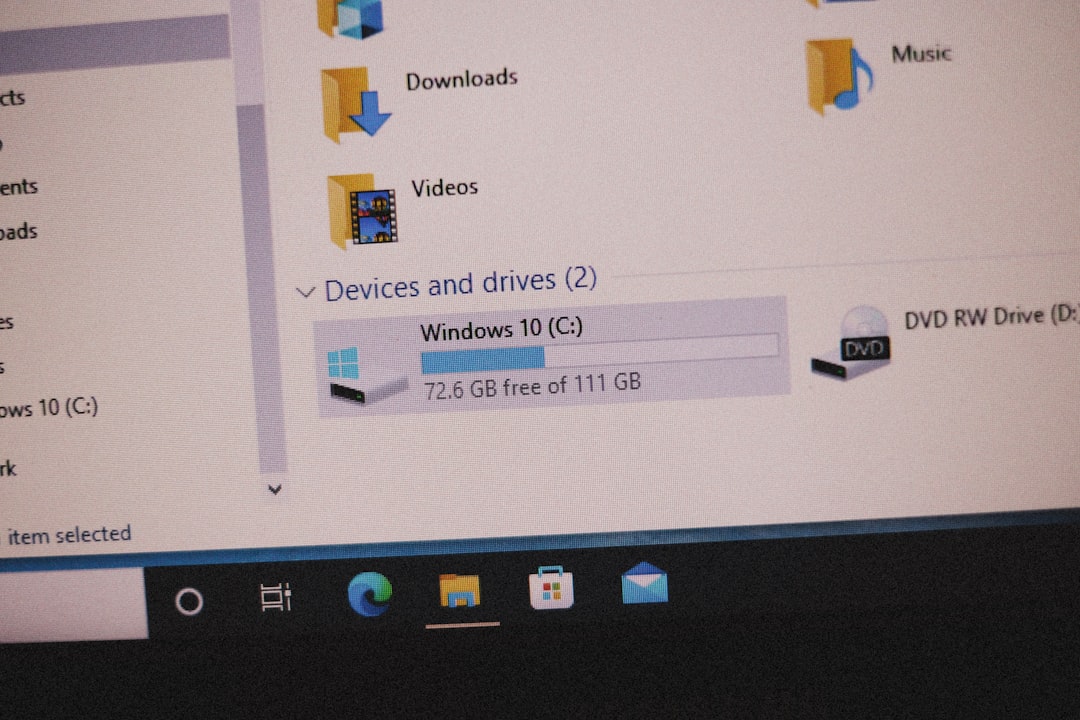
- Open Disk Management (Win + X → Disk Management)
- Right-click your drive and select Properties
- Go to the Volumes tab
- Look for Partition style — it’ll say MBR or GPT
On macOS, all drives are GPT, unless you went out of your way to change it.
On Linux, just run:
sudo parted /dev/sdX print(Replace sdX with your actual disk label — sda, sdb, etc.)
How to Switch Between MBR and GPT
Warning: This will delete all your data. Back it up!
On Windows, use the diskpart tool:
diskpart
list disk
select disk X
clean
convert gpt
Want to go back to MBR?
convert mbrThere are also third-party apps like MiniTool, AOMEI, or GParted if you prefer a graphical interface.
Final Thoughts: Which One Should You Choose?
Simple answer: Go with GPT.
If you’re using any modern OS and hardware, GPT is the smart choice. It’s faster, safer, and future-friendly. MBR had its time, but it’s kind of like using dial-up in a 5G world.
So next time you’re setting up a hard drive or installing a new OS, and someone asks, “MBR or GPT?” you can confidently say, “GPT, of course!”
Now you know more about disk partitions than the average tech support agent. High five!
